


Anker PowerConf C200

- Maximum video mode: 2K video capture at 30 fps
- Field of view: 65°, 78°, or 95°
- Privacy: Built-in privacy cover
Logitech Brio 300
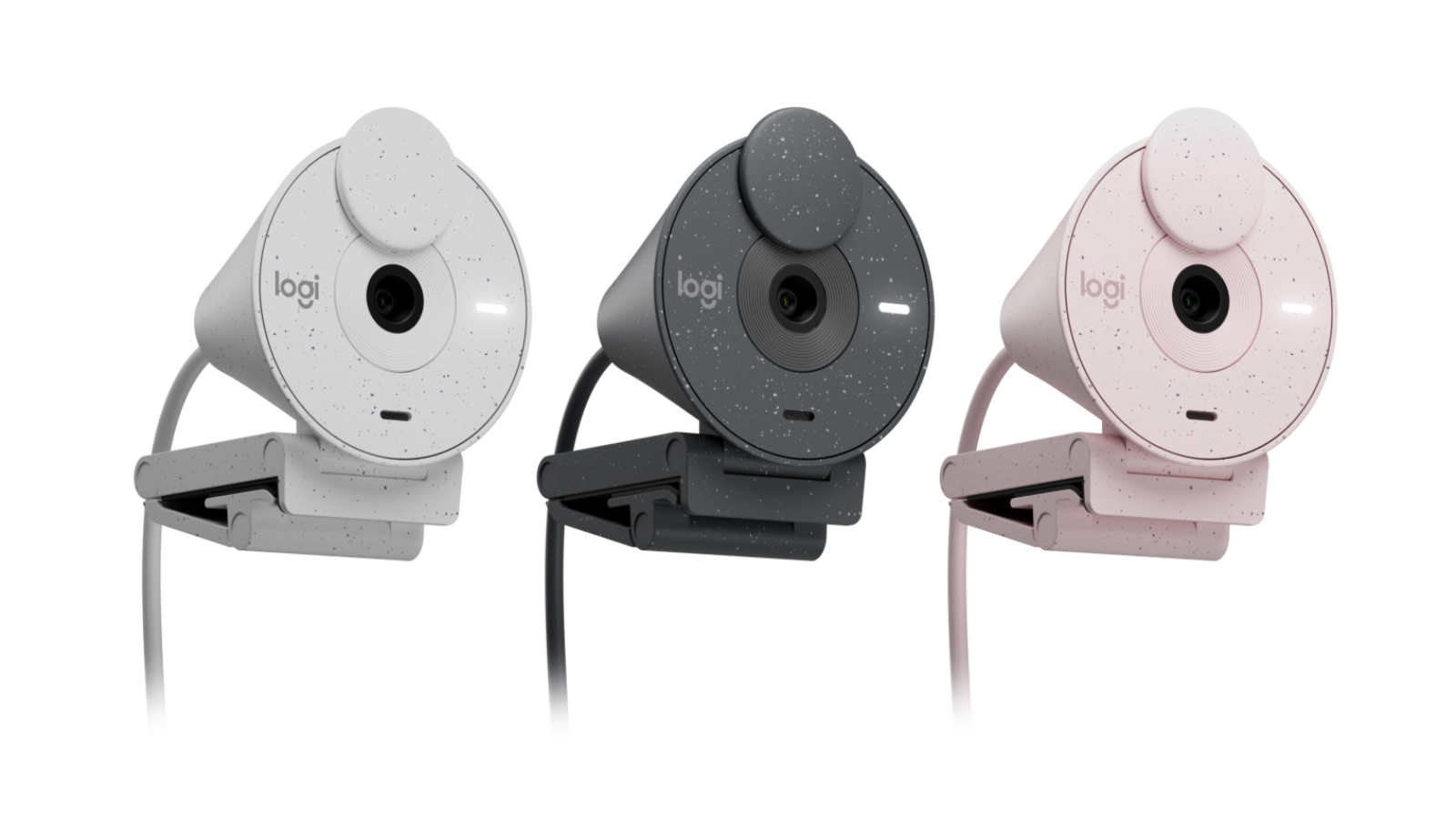
- Resolution: 1080p
- Light correction: RightLight 2 automatic lighting correction
- Privacy: Integrated privacy shutter
Obsbot Tiny 3

- 4K video mode: MJPEG 3840×2160 at listed frame rates
- Gimbal controllable range: Pan ±130°; tilt 32° down to -60° up
- Audio input: One omnidirectional and two directional microphones
The Anker PowerConf C200 is the best overall webcam for working from home because it combines 2K video, three field-of-view options, and a built-in privacy cover. Choose the Obsbot Tiny 3 for a controllable gimbal and 4K mode, or the Logitech Brio 300 for a simpler 1080p meeting setup.
For the wider category, see home office equipment buying advice.
For a related need, compare our best tank printer for home use.
Another focused comparison is our best home label maker.
How do our recommended picks compare?
| Product | Best for | Maximum listed video mode | Framing or movement | Privacy feature |
|---|---|---|---|---|
| Anker PowerConf C200 | Adjustable framing | 2K at 30 fps | 65°, 78°, or 95° field of view | Built-in privacy cover |
| Obsbot Tiny 3 | Controllable camera movement | 4K MJPEG at listed frame rates | Gimbal: pan ±130°; tilt 32° down to -60° up | |
| Logitech Brio 300 | Straightforward video meetings | 1080p | Integrated privacy shutter |
Which webcam for working from home options should you compare?
1. Anker PowerConf C200 Best Overall
For most home offices, the Anker PowerConf C200 makes a strong all-around pick because it offers 2K video capture at 30 fps and lets you choose among three fields of view. That flexibility is useful if your call setup changes between a close speaking frame and a wider view. Its built-in privacy cover gives you a physical way to block the lens when the camera is not in use. Its documented microphone setup is dual stereo, but a webcam mic may not suit every room or preference.
Best for Home workers who want resolution and framing options with a physical camera cover.
| Maximum video mode | 2K video capture at 30 fps |
|---|---|
| Field of view | 65°, 78°, or 95° |
| Privacy | Built-in privacy cover |
Pros
- Offers several listed resolution modes up to 2K at 30 fps.
- Three field-of-view settings support different framing preferences.
- Includes a built-in privacy cover.
Cons
- The documented microphone setup is not a substitute for every worker's preferred audio equipment.
Buy if You want selectable 2K, 1080p, or 720p video modes and adjustable framing.
Skip if You need camera movement from a controllable gimbal or prefer a different audio setup.
Sources: Product source
2. Obsbot Tiny 3
The Obsbot Tiny 3 is the pick for a home worker who wants more than a fixed camera view. Its gimbal has documented controllable pan and tilt ranges of ±130° and from 32° down to -60° up, respectively, making camera movement a central part of its design. It also lists a 4K video mode and an intelligent directional microphone system with one omnidirectional and two directional microphones. Those features make it an option to consider for presentations or changing viewpoints. The tradeoff is complexity: if your regular calls only need a steady, straightforward frame, its movement and feature set may be more than your setup requires.
Best for People who want a webcam with a controllable gimbal and flexible camera positioning.
| 4K video mode | MJPEG 3840×2160 at listed frame rates |
|---|---|
| Gimbal controllable range | Pan ±130°; tilt 32° down to -60° up |
| Audio input | One omnidirectional and two directional microphones |
Pros
- A two-axis gimbal has documented controllable pan and tilt ranges.
- The listed video modes include 4K.
- The microphone system has omnidirectional and directional microphones.
Cons
- Gimbal movement may be unnecessary for a fixed-frame meeting setup.
Buy if You expect to use camera movement or the listed 4K mode.
Skip if You want a straightforward fixed-view webcam and will not use gimbal controls.
Sources: Product source
3. Logitech Brio 300 Alternative Pick
The Logitech Brio 300 suits a home office where the priority is uncomplicated video meetings rather than multiple resolution choices or camera movement. It offers 1080p video, RightLight 2 automatic lighting correction, and a mono noise-reducing microphone. Its integrated privacy shutter gives you a built-in way to block the camera when it is not in use, and USB-C connectivity is listed. Those features make it an option if you want a straightforward meeting setup. Its listed 1080p resolution is lower than the C200’s 2K mode and the Tiny 3’s 4K mode.
Best for Everyday video calls where automatic light correction and a privacy shutter matter.
| Resolution | 1080p |
|---|---|
| Light correction | RightLight 2 automatic lighting correction |
| Privacy | Integrated privacy shutter |
Pros
- Includes RightLight 2 automatic lighting correction.
- Has an integrated privacy shutter.
- Lists USB-C connectivity and a mono noise-reducing microphone.
Cons
- The listed resolution is 1080p.
- The cited features do not include a controllable gimbal.
Buy if You want a 1080p webcam with USB-C, automatic light correction, and a physical shutter.
Skip if You specifically want listed 2K or 4K video modes or controllable camera movement.
Sources: Product source
How did we choose these recommendations?
- We compared published specifications and documented features relevant to everyday work calls, including video modes and framing controls.
- We considered privacy features and the practical difference between a cover, shutter, and a gimbal that can be controlled.
- We assessed documented microphone features while distinguishing microphone design from any promise of perfect call audio.
- We matched each recommendation to a specific home-office use, rather than treating one feature or specification as right for every shopper.
We researched and compared published product specifications, documented features, and the sources linked beside each pick.
What should you look for when choosing webcam for working from home?
Decide how much of your workspace belongs in frame
Before choosing, consider whether you want a close view, a wider view, or the ability to change between them. The C200 lists three field-of-view settings. The Tiny 3’s gimbal offers camera movement rather than the same type of fixed field-of-view selection. If you usually sit in one place, a controllable gimbal may not be necessary; if you present or move around, it could be more relevant.
Choose a resolution that suits your calls
The products have different listed video modes: 2K at 30 fps for the C200, a 4K MJPEG mode for the Tiny 3, and 1080p for the Brio 300. Think about what your meetings require and whether your computer setup supports the mode you intend to use.
Treat privacy as a daily-use feature
If you want a physical way to block the lens, look at the C200’s built-in cover and the Brio 300’s integrated shutter. Consider whether you can easily reach the control when ending a call. Choose a camera with a physical lens block if that feature is essential to your routine.
Match the microphone description to your setup
The C200 lists dual stereo microphones, the Tiny 3 lists one omnidirectional and two directional microphones, and the Brio 300 lists a mono noise-reducing microphone. These descriptions help distinguish their documented audio features but do not establish how each will sound in your particular room. Consider your background noise and whether you already use, or prefer, a separate audio device.
Check connections before positioning the camera
Plan where the webcam will sit and how its connection will reach your computer. The Brio 300 lists USB-C connectivity. Consider your computer and connection setup when choosing where to position any webcam.
Start with the way you actually use video calls. For a regular seated meeting, a stable camera view and a clear way to control framing may matter more than a long list of advanced features. The C200 gives you three field-of-view choices, while the Brio 300 offers 1080p video, automatic light correction, and a privacy shutter.
Think about what the camera needs to show. A tighter view can keep more of your room outside the frame, while a wider view can help when you need to include more of your workspace. If your camera angle needs to change during a call, the Tiny 3’s controllable gimbal distinguishes it from the other two options. Match the feature to your setup instead of assuming every meeting needs the same kind of camera.
Higher listed resolution gives you an option to capture video at a more detailed output mode, but it is not the only consideration for a work call. The C200 supports 2K video capture at 30 fps and also lists 1080p and 720p modes. The Tiny 3 lists a 4K MJPEG mode, along with other video modes. The Brio 300 is a 1080p webcam.
Choose according to your intended use and the rest of your setup. A worker who wants a straightforward meeting camera may be satisfied with a 1080p option and appreciate the Brio 300’s other features. If you want the option of a higher listed mode, compare the C200 and Tiny 3. Check that your computer and call software support the video mode you intend to use.
FAQ
Which webcam is the best overall choice for working from home?
The Anker PowerConf C200 is the best overall pick here for workers who want adjustable framing and a physical privacy cover. It lists 2K video capture at 30 fps and three field-of-view choices. If you need gimbal movement or prefer a simpler 1080p webcam, the other picks may fit better.
Which of these webcams has 4K video?
The Obsbot Tiny 3 lists an MJPEG 3840×2160 video mode at specified frame rates.
Which webcam has a physical privacy control?
The Anker PowerConf C200 has a built-in privacy cover, and the Logitech Brio 300 has an integrated privacy shutter. Both give you a documented physical way to block the camera.
Can the Anker PowerConf C200 record at 1080p?
Yes. Its listed supported resolutions include 1080p at 30 fps, as well as 2K, 720p, and 320×240 at 30 fps. The maximum listed mode is 2K video capture at 30 fps.
Which webcam is designed for camera movement?
The Obsbot Tiny 3 is the movement-focused option. Its gimbal has a listed controllable pan range of ±130° and tilt range from 32° down to -60° up. The C200 instead offers selectable field-of-view options.
What should I consider about webcam audio?
Compare the documented microphone features with your room and call habits. The C200 lists dual stereo microphones, the Tiny 3 lists one omnidirectional and two directional microphones, and the Brio 300 lists a mono noise-reducing microphone. Those descriptions do not guarantee the right result for every setup.
Which webcam for working from home should you buy?
For most homes, start with the Anker PowerConf C200. For another option, compare the Logitech Brio 300. Need the use-case pick? Consider the Anker PowerConf C200.
- Best Overall: Anker PowerConf C200
- Alternative Pick: Logitech Brio 300
- Pick 3: Obsbot Tiny 3
When was this guide last updated?
- November 07, 2026: Editorial research prepared. Product specifications and source images reviewed.